Start from an authorized connection
With the pilot add-in installed, sign in to MeshWorks and select the organization and project you are authorized to use. Confirm the active assembly and configuration before importing.
SOLIDWORKS teams · Engineering managers · Buyers
The handover from an assembly to purchasing needs more than a list of components. Review the imported structure, classify the work and check what is eligible for release before preparing supplier documents.
When engineering and buyers work from separate lists, the assembly context is easy to lose. MeshWorks connects the BOM to a selected project, where quantities, classification, release status and purchasing records can be reviewed together.
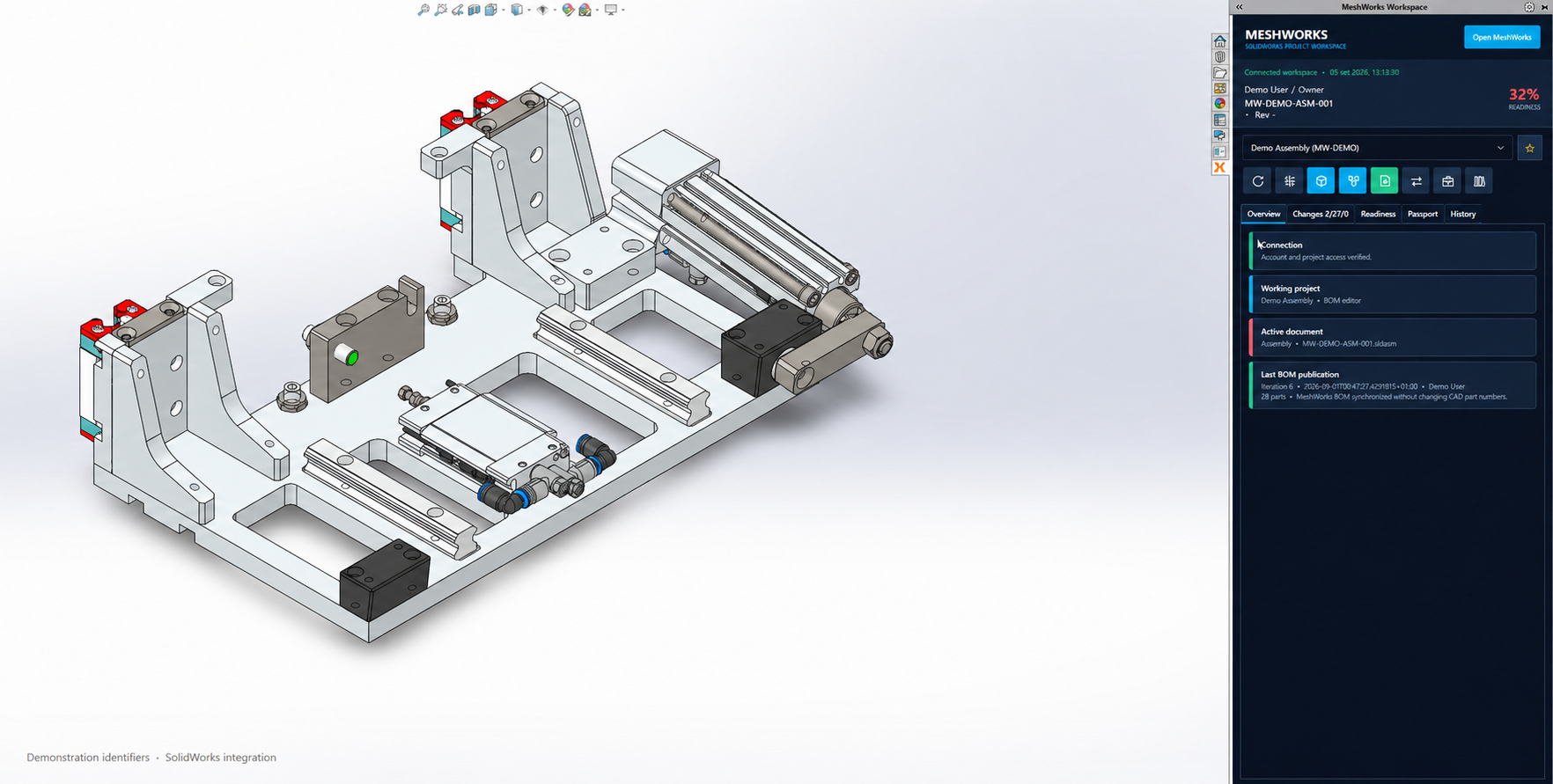
With the pilot add-in installed, sign in to MeshWorks and select the organization and project you are authorized to use. Confirm the active assembly and configuration before importing.
After the import, inspect quantities, hierarchy and available thumbnails in MeshWorks. Check that the selected project and imported iteration match the engineering handover you intend to review.
Check component classification and the intended procurement or production route. Review release eligibility and permissions before treating a component as ready for purchasing.
Prepare an RFQ for the relevant demand, or review remaining quantities in a supplier order draft. Supplier selection and purchasing approval remain decisions in the purchasing workflow.
Sign in and open Integrations. The workspace shows the add-in and its installation material only when the account and organization have the required access.
Yes. You can import a spreadsheet BOM into the project, check the column mapping and review the result before proceeding with release or purchasing.
No. Importing an assembly BOM does not send a supplier order or approve spending. Review the BOM and follow the purchasing workflow.
Review your actual handover
Walk through the project BOM, release and purchasing steps with the MeshWorks team and check which parts fit your process.
Talk to the team